
Registration in the Globula app: Difference between revisions
Готово |
1 |
||
| (14 intermediate revisions by the same user not shown) | |||
| Line 1: | Line 1: | ||
[[ | [[Category:Manuals]] | ||
Download the APK from the [https://www.globula.space/downloads-dev-zone/ official Globula website]. | |||
You can register in Globula using a login/password or via Google ID. | |||
Both methods are described below. | |||
== Registration via Login/Password == | |||
Install and launch the application. | |||
<gallery widths="200px" heights="200px" perrow="2"> | <gallery widths="200px" heights="200px" perrow="2"> | ||
File:Registration manual 1.jpg| Tap the "Create new Account" button | |||
File:Registration manual 2.jpg| Fill out the form fields | |||
</gallery> | </gallery> | ||
* | * Enter an email address you have access to. It will be needed for password recovery; it cannot be changed after registration (double-check your email spelling immediately!). | ||
* | * If you want to be able to log into your account via Google ID as well, '''use the same email that is used for your Google account'''. | ||
* | * The next field is for your in-game name (nickname), no more than 20 characters. The nickname can contain numbers and Latin letters (uppercase and lowercase), as well as up to two spaces. For example: Captain John Silver. | ||
* | * The next field is for the password. The password must be at least 8 characters long and contain at least one digit and one uppercase letter. | ||
* | * Repeat the password. | ||
* Tap SignUp if all fields are filled in correctly. | |||
After this, the application will return to the main menu.<br> | |||
Enter your login and password.<br> | |||
If everything is successful, the game field will load.<br> | |||
Verify that your data has been recorded correctly.<br> | |||
<gallery widths="200px" heights="200px" perrow="3"> | <gallery widths="200px" heights="200px" perrow="3"> | ||
File:Registration manual 3.jpg|Step 3 | |||
File:Registration manual 4.jpg|Step 4 | |||
File:Registration manual 5.jpg|Step 5 | |||
</gallery> | </gallery> | ||
3 | 3. To do this, press the "Leaderboard" rating icon at the top right. A list of the most active players will be displayed in the window, and at the very bottom, you will see your nickname and current ranking position. | ||
4. Press the gear "Settings" icon to the right of the rating icon. | |||
A window with user settings will appear. | |||
Select the “Connections” line. | |||
5. A window with your account data will open. Make sure the email address you entered is correct. | |||
You can continue playing without linking a wallet, but to access marketplace operations, you need to link a TON wallet to your account. | |||
If you do not have a TON wallet yet, you can create one. To do so, proceed to the chapter '''How to create a TON wallet?'''. | |||
If you already have a wallet, then: | |||
<gallery widths="200px" heights="200px" perrow="3"> | <gallery widths="200px" heights="200px" perrow="3"> | ||
File:Registration manual 6.jpg|Step 6 | |||
File:Registration manual 7.jpg|Step 7 | |||
File:Registration manual 8.jpg|Step 8 | |||
</gallery> | </gallery> | ||
6. | 6. Tap the line “TON Wallet (Connect your wallet)”. In the opened window, a list of several supported wallet types will appear. | ||
7. | 7. Select the application where you store your wallet, and after launching the application, press to connect the wallet and complete the authorization. | ||
A message should appear – “The user was successfully added”. | |||
8. | 8. If the linking was successful, then instead of the words “Connect your wallet” under the “TON Wallet” line, your wallet address will appear. | ||
''' | '''Remember, your account data — nickname (login), email address, and TON wallet address — cannot be changed after registration and linking.''' | ||
If you want to change your login password, press “Log Out” in the settings. Then press “Forgot password?” on the game login screen. A recovery code will be sent to the email address linked to your account. Double-check your email spelling during registration! | |||
'''If the message “Wallet not connected” appears when trying to connect a wallet'''. This is possible if the service is overloaded. Sometimes you need to wait a few hours and repeat the operation. | |||
You can play Globula without linking a wallet and connect it later when the service is available. | |||
== | ==Registration via Google ID== | ||
<gallery widths="200px" heights="200px" perrow="2"> | <gallery widths="200px" heights="200px" perrow="2"> | ||
File:Registration manual 1.jpg|Tap the "Continue with Google" button. | |||
File:Registration manual 14.jpg|If you do not yet have an account in the Globula project, the following window will open. | |||
</gallery> | </gallery> | ||
Enter a nickname. It must contain no more than 20 characters. The nickname can contain numbers and Latin letters (uppercase and lowercase), as well as up to two spaces. For example: ''Captain John Silver''. | |||
If everything is successful, the game field will load. | |||
Verify that your data has been recorded correctly. | |||
<gallery widths="200px" heights="200px" perrow="3"> | <gallery widths="200px" heights="200px" perrow="3"> | ||
File:Registration manual 3.jpg|Step 3 | |||
File:Registration manual 4.jpg|Step 4 | |||
File:Registration manual 5.jpg|Step 5 | |||
</gallery> | </gallery> | ||
3. | 3. To do this, press the "Leaderboard" rating icon at the top right. A list of the most active players will be displayed in the window, and at the very bottom, you will see your nickname and current ranking position. | ||
4 | 4. Press the gear "Settings" icon to the right of the rating icon. A window with user settings will appear. Select the “Connections” line. | ||
5. A window with your account data will open. Make sure the email address you entered is correct. | |||
You can continue playing without linking a wallet, but to access marketplace operations, you need to link a TON wallet to your account. | |||
If you do not have a TON wallet yet, you can create one. To do so, proceed to the chapter '''How to create a TON wallet?'''. | |||
If you already have a wallet, then: | |||
<gallery widths="200px" heights="200px" perrow="3"> | |||
File:Registration manual 6.jpg|Step 6 | |||
File:Registration manual 7.jpg|Step 7 | |||
File:Registration manual 8.jpg|Step 8 | |||
</gallery> | |||
6. Tap the line “TON Wallet (Connect your wallet)”. In the opened window, a list of several supported wallet types will appear. | |||
7. Select the application where you store your wallet, and after launching the application, press to connect the wallet and complete the authorization. | |||
A message should appear – “The user was successfully added”. | |||
8. If the linking was successful, then instead of the words “Connect your wallet” under the “TON Wallet” line, your wallet address will appear. | |||
'''Remember, your account data — nickname (login), email address, and TON wallet address — cannot be changed after registration and linking.''' | |||
If you want to use a password for login, press “Log Out” in the settings. Then press “Forgot password?” on the game login screen. A recovery code will be sent to the email address associated with your account, which is the one in your Google account. | |||
'''If the message “Wallet not connected” appears when trying to connect a wallet'''. This is possible if the service is overloaded. Sometimes you need to wait a few hours and repeat the operation. | |||
You can play Globula without linking a wallet and connect it later when the service is available. | |||
== | ==How to create a TON wallet?== | ||
If you don't have a wallet yet, you first need to download a client, for example, HOT Wallet [https://hot-labs.org/wallet/ download], install the application, and create a wallet in it. *If you have never used crypto wallets before, it is recommended to read up on the topic, as well as learn about seed phrases and the basics of crypto security.* | |||
In addition to HOT Wallet, you can use the following wallet clients: | |||
* TonSpace [https://wallet.tg/wallet | * TonKeeper [https://tonkeeper.com/ download]. | ||
* Tonhub [https://tonhub.com/ | * TonSpace [https://wallet.tg/wallet download]. | ||
* MyTonWallet [https://mytonwallet.io/ | * Tonhub [https://tonhub.com/ download]. | ||
* MyTonWallet [https://mytonwallet.io/ download]. | |||
''' | '''Please remember that you cannot change the wallet in your Globula account! If you lose access to your wallet, you lose access to all marketplace functions! To prevent this, write down the seed phrase for your TON space wallet and store it in a secure (non-digital) place.''' | ||
If you have any questions, you can always ask them on our [https://t.me/globula_community/ Telegram forum]. | |||
Latest revision as of 12:03, 5 December 2025
Download the APK from the official Globula website.
You can register in Globula using a login/password or via Google ID. Both methods are described below.
Registration via Login/Password
[edit]Install and launch the application.
-
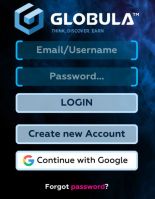 Tap the "Create new Account" button
 -
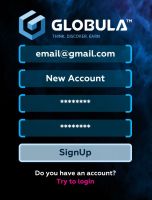 Fill out the form fields


- Enter an email address you have access to. It will be needed for password recovery; it cannot be changed after registration (double-check your email spelling immediately!).
- If you want to be able to log into your account via Google ID as well, use the same email that is used for your Google account.
- The next field is for your in-game name (nickname), no more than 20 characters. The nickname can contain numbers and Latin letters (uppercase and lowercase), as well as up to two spaces. For example: Captain John Silver.
- The next field is for the password. The password must be at least 8 characters long and contain at least one digit and one uppercase letter.
- Repeat the password.
- Tap SignUp if all fields are filled in correctly.
After this, the application will return to the main menu.
Enter your login and password.
If everything is successful, the game field will load.
Verify that your data has been recorded correctly.
-
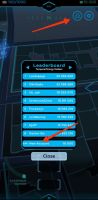 Step 3
 -
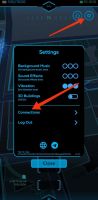 Step 4
 -
 Step 5


3. To do this, press the "Leaderboard" rating icon at the top right. A list of the most active players will be displayed in the window, and at the very bottom, you will see your nickname and current ranking position.
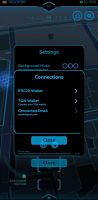
4. Press the gear "Settings" icon to the right of the rating icon. A window with user settings will appear. Select the “Connections” line.
5. A window with your account data will open. Make sure the email address you entered is correct.
You can continue playing without linking a wallet, but to access marketplace operations, you need to link a TON wallet to your account.
If you do not have a TON wallet yet, you can create one. To do so, proceed to the chapter How to create a TON wallet?.
If you already have a wallet, then:
-
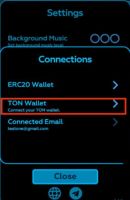 Step 6
 -
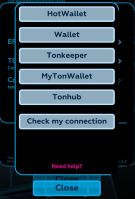 Step 7
 -
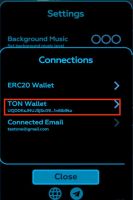 Step 8


6. Tap the line “TON Wallet (Connect your wallet)”. In the opened window, a list of several supported wallet types will appear.
7. Select the application where you store your wallet, and after launching the application, press to connect the wallet and complete the authorization. A message should appear – “The user was successfully added”.
8. If the linking was successful, then instead of the words “Connect your wallet” under the “TON Wallet” line, your wallet address will appear.
Remember, your account data — nickname (login), email address, and TON wallet address — cannot be changed after registration and linking.
If you want to change your login password, press “Log Out” in the settings. Then press “Forgot password?” on the game login screen. A recovery code will be sent to the email address linked to your account. Double-check your email spelling during registration!
If the message “Wallet not connected” appears when trying to connect a wallet. This is possible if the service is overloaded. Sometimes you need to wait a few hours and repeat the operation. You can play Globula without linking a wallet and connect it later when the service is available.
Registration via Google ID
[edit]-
Tap the "Continue with Google" button.
-
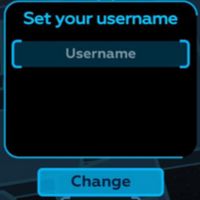 If you do not yet have an account in the Globula project, the following window will open.

Enter a nickname. It must contain no more than 20 characters. The nickname can contain numbers and Latin letters (uppercase and lowercase), as well as up to two spaces. For example: Captain John Silver.
If everything is successful, the game field will load. Verify that your data has been recorded correctly.
-
Step 3
-
Step 4
-
Step 5
3. To do this, press the "Leaderboard" rating icon at the top right. A list of the most active players will be displayed in the window, and at the very bottom, you will see your nickname and current ranking position.
4. Press the gear "Settings" icon to the right of the rating icon. A window with user settings will appear. Select the “Connections” line.
5. A window with your account data will open. Make sure the email address you entered is correct.
You can continue playing without linking a wallet, but to access marketplace operations, you need to link a TON wallet to your account.
If you do not have a TON wallet yet, you can create one. To do so, proceed to the chapter How to create a TON wallet?.
If you already have a wallet, then:
-
Step 6
-
Step 7
-
Step 8
6. Tap the line “TON Wallet (Connect your wallet)”. In the opened window, a list of several supported wallet types will appear.
7. Select the application where you store your wallet, and after launching the application, press to connect the wallet and complete the authorization. A message should appear – “The user was successfully added”.
8. If the linking was successful, then instead of the words “Connect your wallet” under the “TON Wallet” line, your wallet address will appear.
Remember, your account data — nickname (login), email address, and TON wallet address — cannot be changed after registration and linking.
If you want to use a password for login, press “Log Out” in the settings. Then press “Forgot password?” on the game login screen. A recovery code will be sent to the email address associated with your account, which is the one in your Google account.
If the message “Wallet not connected” appears when trying to connect a wallet. This is possible if the service is overloaded. Sometimes you need to wait a few hours and repeat the operation. You can play Globula without linking a wallet and connect it later when the service is available.
How to create a TON wallet?
[edit]If you don't have a wallet yet, you first need to download a client, for example, HOT Wallet download, install the application, and create a wallet in it. *If you have never used crypto wallets before, it is recommended to read up on the topic, as well as learn about seed phrases and the basics of crypto security.*
In addition to HOT Wallet, you can use the following wallet clients:
Please remember that you cannot change the wallet in your Globula account! If you lose access to your wallet, you lose access to all marketplace functions! To prevent this, write down the seed phrase for your TON space wallet and store it in a secure (non-digital) place.
If you have any questions, you can always ask them on our Telegram forum.