
First steps in Globula: Difference between revisions
m 1 |
|||
| Line 6: | Line 6: | ||
==Temporal Energy Harvesting== | ==Temporal Energy Harvesting== | ||
At the start there are some [[TEU]]s (temporal energy units) already available for use, including several full batteries for basic weapons. | |||
TEUs are required for all tools in Globula. | |||
To get more TEUs you need to use the Harvester tool. | |||
<gallery widths="250px" heights="250px" perrow="1"> | <gallery widths="250px" heights="250px" perrow="1"> | ||
File:First Steps 1.jpg|Basic SO-RI | File:First Steps 1.jpg|Basic SO-RI & Upper Slot | ||
</gallery> | </gallery> | ||
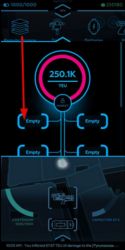
Tap the empty [[Upper Slot|upper slot]] to open the Tools/Weapons pop-up tab. Tap the desired tool to place it into the upper slot. | |||
[[Basic TEU Harvester]] is already available at the start of the game. | |||
Harvesting TEUs is only possible when you move with the device at the speed up to 9 km/h. | |||
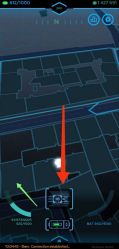
TEUs first fill the [[Existensor|EXISTENSOR]] (the active bar on the left), and once it reaches its capacity, TEUs are transferred into the [[Remote Storage|REMOTE STORAGE]] (in the top right corner). The arrows on the screenshot below show the existensor bar and the remote storage volume. | |||
<gallery widths="250px" heights="250px" perrow="1"> | <gallery widths="250px" heights="250px" perrow="1"> | ||
File:First Steps 2.jpg| | File:First Steps 2.jpg|Existensor & Remote Storage | ||
</gallery> | </gallery> | ||
The active bar on the right (OPTIMAL SPEED) shows your current speed in the real world. | |||
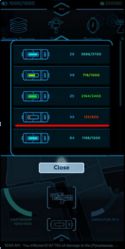
Tap the lower empty slop to open the pop-up battery tab. There are several full batteries already available at the start. Tap any to place it into the [[Lower Slot|lower slot]]. | |||
<gallery widths="250px" heights="250px" perrow="1"> | <gallery widths="250px" heights="250px" perrow="1"> | ||
File:First Steps 3.jpg| | File:First Steps 3.jpg|Batteries & Lower Slot | ||
</gallery> | </gallery> | ||
=== | If there is a harvester and an empty battery equipped, TEUs first charge up the battery up to its full capacity, then fill up the existensor, and then pass on into the remote storage. TEU harvesting can be performed with or without a battery equipped. | ||
Long tap the upper or lower slot to remove the tool equipped and empty the slot. | |||
===‘Pocket’ TEU harvesting=== | |||
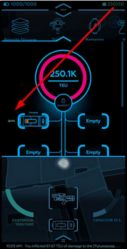
There is a sliding switch between the upper and the lower tool slot. Swipe right to activate the screen block. This would allow you to keep harvesting TEUs while the device is in your bag or pocket. The screen would dim and ignore any accidental taps. To deactivate the screen block, swipe the switch left. | |||
<gallery widths="250px" heights="250px" perrow="2"> | <gallery widths="250px" heights="250px" perrow="2"> | ||
File:First Steps 4.jpg| | File:First Steps 4.jpg|Pocket mode switch | ||
File:First Steps 5.jpg| | File:First Steps 5.jpg|Pocket mode | ||
</gallery> | </gallery> | ||
==Hunting Globulas and Acquiring Components== | ==Hunting Globulas and Acquiring Components== | ||
Revision as of 18:13, 10 December 2025
ℹ️ While writing...
The basic task is to explore the universe of Globula with the help of different tools: harvest TEUs, acquire components and blueprints to craft all the necessary equipment.
APK download
Temporal Energy Harvesting
At the start there are some TEUs (temporal energy units) already available for use, including several full batteries for basic weapons.
TEUs are required for all tools in Globula.
To get more TEUs you need to use the Harvester tool.
-
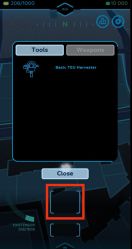 Basic SO-RI & Upper Slot

Tap the empty upper slot to open the Tools/Weapons pop-up tab. Tap the desired tool to place it into the upper slot.
Basic TEU Harvester is already available at the start of the game. Harvesting TEUs is only possible when you move with the device at the speed up to 9 km/h.
TEUs first fill the EXISTENSOR (the active bar on the left), and once it reaches its capacity, TEUs are transferred into the REMOTE STORAGE (in the top right corner). The arrows on the screenshot below show the existensor bar and the remote storage volume.
-
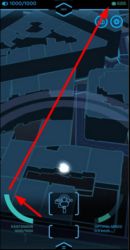 Existensor & Remote Storage

The active bar on the right (OPTIMAL SPEED) shows your current speed in the real world.
Tap the lower empty slop to open the pop-up battery tab. There are several full batteries already available at the start. Tap any to place it into the lower slot.
-
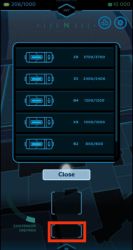 Batteries & Lower Slot

If there is a harvester and an empty battery equipped, TEUs first charge up the battery up to its full capacity, then fill up the existensor, and then pass on into the remote storage. TEU harvesting can be performed with or without a battery equipped.
Long tap the upper or lower slot to remove the tool equipped and empty the slot.
‘Pocket’ TEU harvesting
There is a sliding switch between the upper and the lower tool slot. Swipe right to activate the screen block. This would allow you to keep harvesting TEUs while the device is in your bag or pocket. The screen would dim and ignore any accidental taps. To deactivate the screen block, swipe the switch left.
-
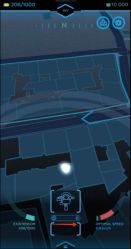 Pocket mode switch
 -
 Pocket mode


Hunting Globulas and Acquiring Components
-
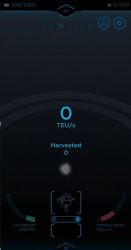
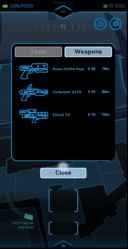 Оружие можно использовать сразу при старте игры. Тапом по пустому верхнему слоту открывается меню Tools/Weapons.
 -
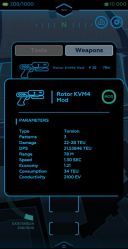 Длинным тапом по инструментам или оружию в этом меню открывается информационное окно этого предмета.
 -
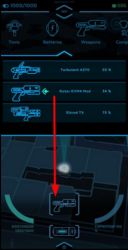 Также оружие или инструмент можно выбрать из общего меню инвентаря по иконке INV сверху.


-
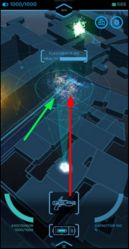 Глобула на прицеле

-
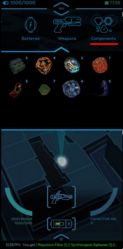 Содержимое вкладки Components (меню INV)
 -
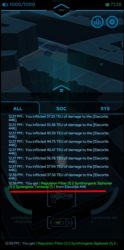 В записи системных логов, перечислены полученные фрагменты глобулы.


-
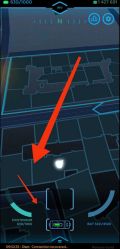 Способ 1
 -
 Способ 2


Remote Storage: Charging Batteries
-
 Далее тапом по пустому слоту накопителя открывается меню доступных батарей.
 -
 Нужная батарея тапом перемещается в выбранный слот зарядки.
 -
 Зарядка батареи стартует автоматически после помещения в слот и занимает некоторое время.


Crafting
-
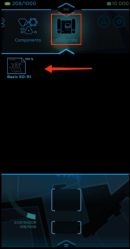 Тап по меню INV — Blueprints (чертежи) открывает список доступных чертежей.
 -
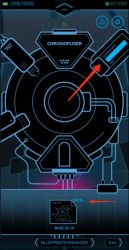 Тап по любому чертежу открывает экран CHRONOFUSER (производственный комплекс).
 -
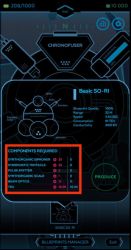


-
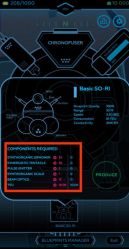 Тап по выбранному чертежу открывает окно с описанием предмета и списком необходимых для его изготовления компонентов.

Scanning Globulas and Acquiring Blueprints
Compass
-
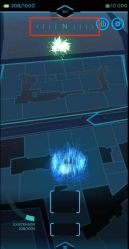 Шкала вверху показывает стороны света E, N, W и S.

Chats and logs

-
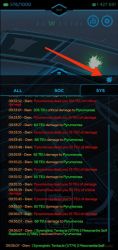 Логи полученного и нанесенного урона можно отключить, нажав на иконку-квазар в правом углу окна чатов.

-
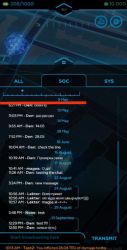 В верхней части раздела находится шкала, которая позволяет настроить фильтр сообщений в радиусе 5, 20, 100 и 1000 км от вашего текущего местоположения.

Minting and Transferring Items
-
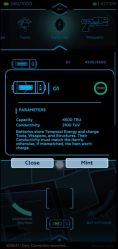 Откроется информационное окно.

-
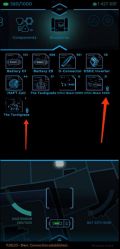 Изображение вашего NFT с иконкой цепочки справа снизу

-
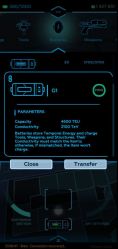 Если вы хотите вернуть предмет в игру, то нужно сделать длинный тап по иконке предмета с цепочкой.


