
First steps in Globula: Difference between revisions
→Crafting: 1 |
|||
| Line 134: | Line 134: | ||
==Scanning Globulas and Acquiring Blueprints== | ==Scanning Globulas and Acquiring Blueprints== | ||
Blueprints are obtained with the help of a special tool (requires crafting). At the start of the game a 100% success rate Basic [[Blueprint Basic SO-RI|SO-RI blueprint]] is already placed in your inventory. | |||
Once it’s been crafted in the Chronofuser it becomes available as one of the [[Tools|tools]]. | |||
The SO-RI is placed into the [[Upper Slot|upper slot]], it also requires a charged battery in the [[Lower Slot|lower slot]]. | |||
The radius of the SO-RI is a lot shorter than that of any weapon. Tap the globula once it’s in the scanning light cone, then tap the SO-RI to perform the scanning. | |||
There are three possible outcomes of the scanning: | |||
– it may produce one blueprint layer (the sys log would give the name of the exact blueprint); | |||
– it may fail and generate no layers of blueprints; | |||
– it might become unavailable if the number of scanning attempts exceeds a certain number. | |||
The Basic SO-RI has a very low scan success chance. Besides, each globula can be scanned no more than three times. After the third attempt, the tool would signal that scanning is not available any more for that globula, and another target should be chosen for scanning. | |||
Each successful scanning produces just one layer of a blueprint. The number of layers already collected is shown at the top right corner of a blueprint and corresponds to the success rate for crafting. Each successful scan adds one layer to a blueprint up to 100. The 101st successful scan of a blueprint will add another copy to the inventory, thus creating a 100% blueprint and a 1% blueprint. | |||
==Compass== | ==Compass== | ||
Revision as of 10:36, 11 December 2025
ℹ️ While writing...
The basic task is to explore the universe of Globula with the help of different tools: harvest TEUs, acquire components and blueprints to craft all the necessary equipment.
APK download
Temporal Energy Harvesting
At the start there are some TEUs (temporal energy units) already available for use, including several full batteries for basic weapons.
TEUs are required for all tools in Globula.
To get more TEUs you need to use the Harvester tool.
-
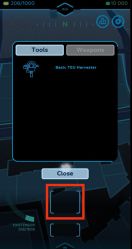 Basic SO-RI & Upper Slot

Tap the empty upper slot to open the Tools/Weapons pop-up tab. Tap the desired tool to place it into the upper slot.
Basic TEU Harvester is already available at the start of the game. Harvesting TEUs is only possible when you move with the device at the speed up to 9 km/h.
TEUs first fill the EXISTENSOR (the active bar on the left), and once it reaches its capacity, TEUs are transferred into the REMOTE STORAGE (in the top right corner). The arrows on the screenshot below show the existensor bar and the remote storage volume.
-
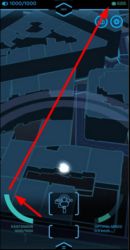 Existensor & Remote Storage

The active bar on the right (OPTIMAL SPEED) shows your current speed in the real world.
Tap the lower empty slop to open the pop-up battery tab. There are several full batteries already available at the start. Tap any to place it into the lower slot.
-
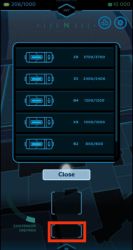 Batteries & Lower Slot

If there is a harvester and an empty battery equipped, TEUs first charge up the battery up to its full capacity, then fill up the existensor, and then pass on into the remote storage. TEU harvesting can be performed with or without a battery equipped.
Long tap the upper or lower slot to remove the tool equipped and empty the slot.
‘Pocket’ TEU harvesting
There is a sliding switch between the upper and the lower tool slot. Swipe right to activate the screen block. This would allow you to keep harvesting TEUs while the device is in your bag or pocket. The screen would dim and ignore any accidental taps. To deactivate the screen block, swipe the switch left.
-
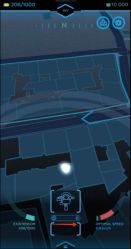 Pocket mode switch
 -
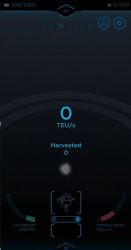 Pocket mode


Hunting Globulas and Acquiring Components
TEUs are required to charge weapons for hunting globulas (cryptic inhabitants of Globula). There are several weapons already available at the start.
-
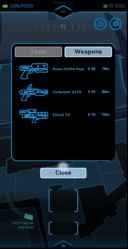 Tap the empty upper slot to open the pop-up tab Tools/Weapons.
 -
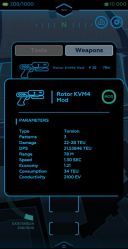 Long tap any tool or weapon in the menu to get additional information in a pop-up window.
 -
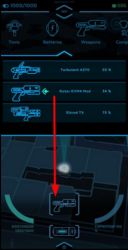 Weapons and tools can also be selected from the general inventory menu at the top of the map (tap the INV icon).


Any weapon requires a battery equipped in the lower slot (either tap the slot if it's empty or use the INV menu – Batteries). With both items equipped the CAPACITOR bar will appear on the right. The battery gradually charges the weapon as shown by the progress bar of the capacitor. Once it reaches 100% the weapon can be discharged at a targeted globula.
Globulas are different light objects on the map. They must be within the currently equipped weapon range (shown by the radar lines) to be hunted. Move the weapon’s light cone by swiping left or right and tap the globula within it. Tap the weapon to discharge it at the globula. The globula will stay targeted unless you move completely out of range or choose another object by tapping.
-
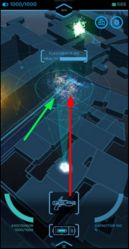 Globula in the Crosshairs

The capacitor refills automatically while the battery holds enough TEUs. Next weapon discharge is possible only at 100% capacitor charge. It might require equipping another charged battery if the previous one runs out of TEUs before the capacitor reaches its full charge.
The capacitor is a part of a weapon and holds the unused charge if removed into the inventory for later use.
Damage and hitpoints of globulas are measured in TEUs. Globulas may drop different components for equipment crafting.
-
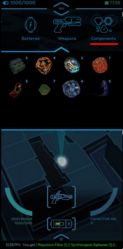 Contents of the Components tab (INV menu)
 -
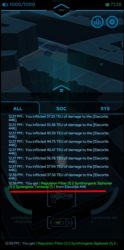 System logs listing the components received from a globula.


Globulas are dangerous and will shoot back! When hit your EXISTENSOR will lose its charge proportional to the damage received. Once it's fully depleted, the app will restart automatically with some TEUs added to the EXISTENSOR.
-
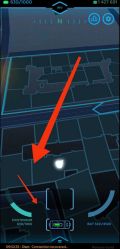 Way 1
Way 1 -
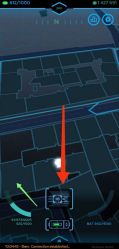 Way 2
Way 2


There are two ways to recharge the EXISTENSOR.
1. Place the Harvester into the upper slot, remove any batteries from the lower slot, and walk a bit, so that TEUs gathered charge the EXISTENSOR directly.
2. Use the Resteupythor. This device allows to recharge the EXISTENSOR from a battery without having to move away from the attack point. Place the Resteupythor into the upper slot and a charged battery into the lower one. The battery will recharge the EXISTENSOR.
At the start of the game a 100% success rate Resteupythor blueprint is already placed in your inventory. You need to craft it from the components gathered from Globulas.
Remote Storage: Charging Batteries
Empty batteries can be charged directly via a harvester (one by one) or via the Remote storage menu (several at once), provided the RS contains enough TEUs harvested previously.
The screenshots below show the INV menu – Remote Storage (swipe left or right to see INV menu titles). First, the empty or partially discharged battery must be removed into the inventory (long tap the lower slot). Then tap any empty slot of the RS to open the battery window and tap the battery to place it into the chosen slot.
-
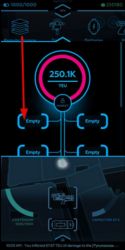 Then tap any empty slot of the RS to open the battery window.
 -
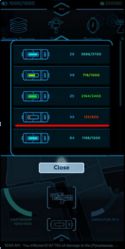 Tap the battery to place it into the chosen slot.
 -
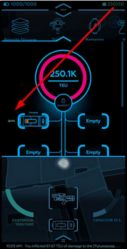 The battery starts charging the moment it’s placed into the RS slot, provided the app is open.


The RS does not charge batteries if the app is closed or in the background mode.
Crafting
Components received from globulas are used in crafting the equipment.
-
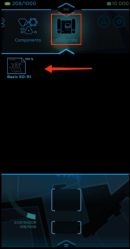 Tap the INV menu – Blueprints to see blueprints in stock.
 -
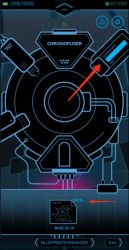 Tap any blueprint to open the CHRONUFUSER window.


At the top right corner of both the Chronofuser and any blueprint there’s Success rate index (shows the chance of successful crafting from 1 to 100%). The lower panel shows all available blueprints in stock.
-
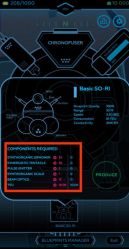 Tap any to open the pop-up window with its description and the list of the required components.

Red/green numbers on the left show the necessary items while the blue ones on right show the items in stock, including the TEUs.
The PRODUCE button becomes tappable when all the resource requirements are met (in green).
Crafting uses up the blueprint and the resources (those items are removed from the inventory). The log shows the result (either an item is successfully produced, or the process fails).
Warning! Blueprints are consumable items. Both the blueprint and the set of the required components together with TEUs are removed from the inventory whatever the result of the crafting. It is highly recommended to use only high success rate blueprints for crafting to avoid loss of components.
Scanning Globulas and Acquiring Blueprints
Blueprints are obtained with the help of a special tool (requires crafting). At the start of the game a 100% success rate Basic SO-RI blueprint is already placed in your inventory.
Once it’s been crafted in the Chronofuser it becomes available as one of the tools.
The SO-RI is placed into the upper slot, it also requires a charged battery in the lower slot.
The radius of the SO-RI is a lot shorter than that of any weapon. Tap the globula once it’s in the scanning light cone, then tap the SO-RI to perform the scanning.
There are three possible outcomes of the scanning: – it may produce one blueprint layer (the sys log would give the name of the exact blueprint); – it may fail and generate no layers of blueprints; – it might become unavailable if the number of scanning attempts exceeds a certain number.
The Basic SO-RI has a very low scan success chance. Besides, each globula can be scanned no more than three times. After the third attempt, the tool would signal that scanning is not available any more for that globula, and another target should be chosen for scanning.
Each successful scanning produces just one layer of a blueprint. The number of layers already collected is shown at the top right corner of a blueprint and corresponds to the success rate for crafting. Each successful scan adds one layer to a blueprint up to 100. The 101st successful scan of a blueprint will add another copy to the inventory, thus creating a 100% blueprint and a 1% blueprint.
Compass
-
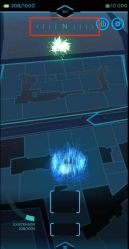 Шкала вверху показывает стороны света E, N, W и S.

Chats and logs

-
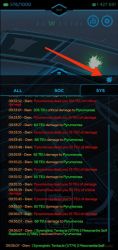 Логи полученного и нанесенного урона можно отключить, нажав на иконку-квазар в правом углу окна чатов.

-
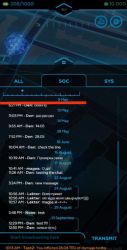 В верхней части раздела находится шкала, которая позволяет настроить фильтр сообщений в радиусе 5, 20, 100 и 1000 км от вашего текущего местоположения.

Minting and Transferring Items
-
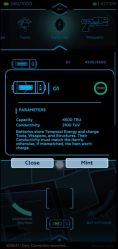 Откроется информационное окно.

-
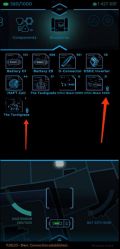 Изображение вашего NFT с иконкой цепочки справа снизу

-
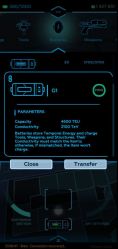 Если вы хотите вернуть предмет в игру, то нужно сделать длинный тап по иконке предмета с цепочкой.


